一个任务栏,多块屏幕,全靠来回找。
你一定熟悉这套动作:想要的窗口在另一块屏幕上,于是 Alt-Tab 按个不停,或者对着任务栏上长得一模一样的按钮一个个点过去找。Windows 从不告诉你窗口在哪块屏幕,你只能一个个试过去。
EdgePop 把显示器之间的边框变成切换器。这条你本来就要穿过的边,现在是桌面上最快的任务跳转。
另一侧的每个窗口,一眼看清。
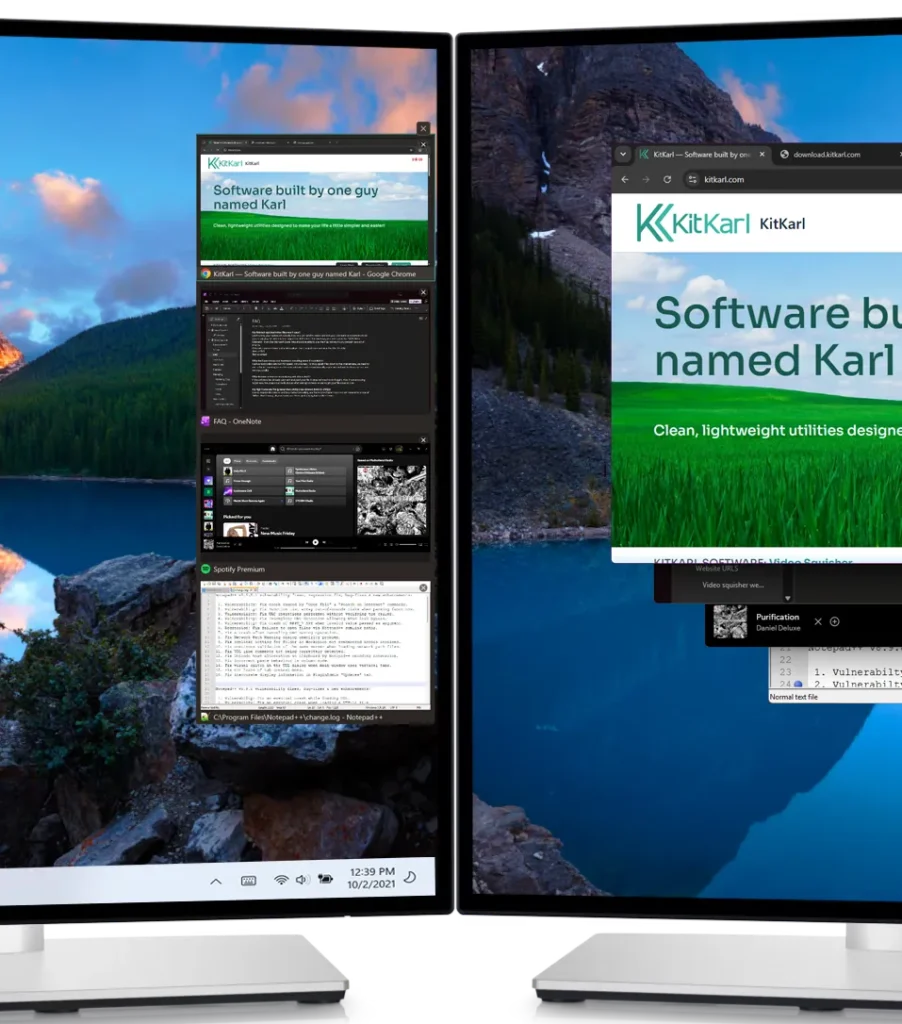
实拍 —— 屏幕边缘的弹窗
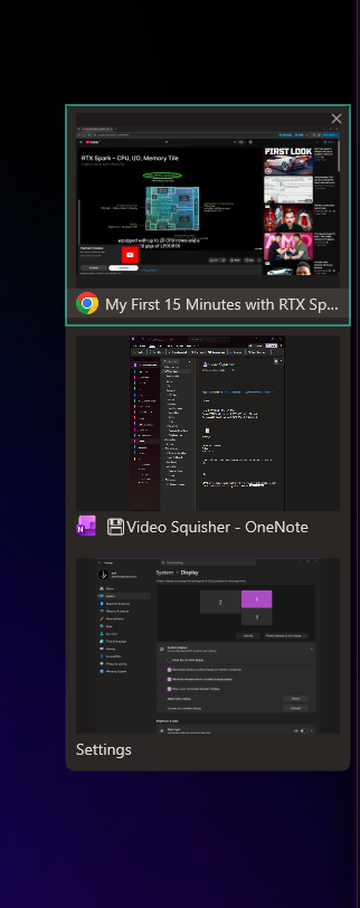
每张卡片实时显示窗口画面,并按真实比例呈现;最小化的应用仍保留卡片和最后的画面快照——和任务栏一样。悬停即可预览整块屏幕,青色边框标记你的选择。
任务栏指示:你的任务栏终于知道窗口在哪了。
Windows 11 在所有显示器上只放一个任务栏,也从不提示应用在哪块屏幕。EdgePop 会在运行中的任务栏图标下方画上小箭头,指向所在的显示器;悬停图标时还会弹出屏幕名称标签。打开一次,从此不用猜。
任务栏屏幕指示需要 Windows 11;边缘弹窗在 Windows 11 和 Windows 10(1809+)上均可用。
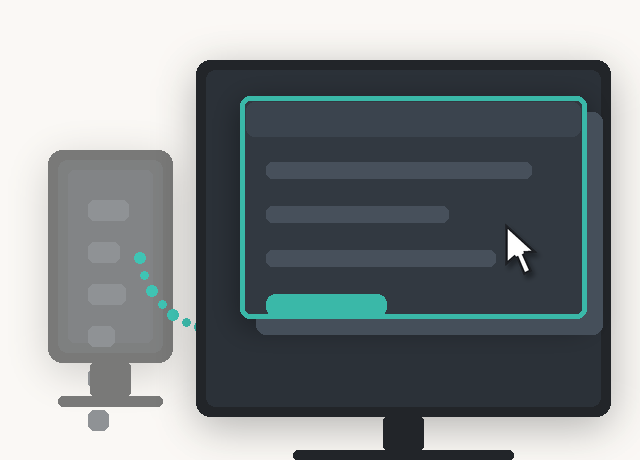
移到边缘,看看那边有什么。
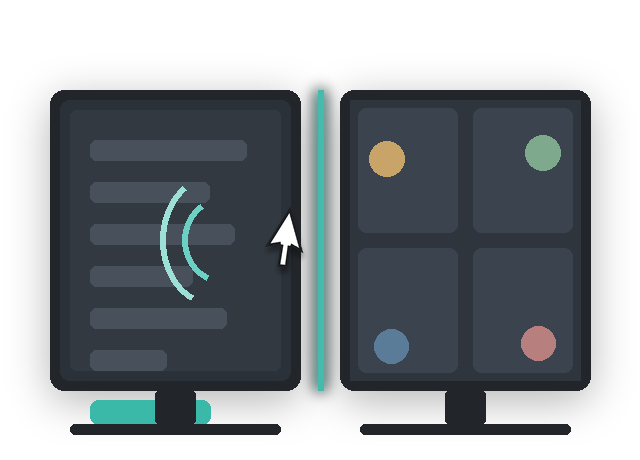
移到边缘,停一下
把鼠标滑到两台显示器之间的边框上稍作停留,或者快速穿过边框再折回。
另一侧尽收眼底
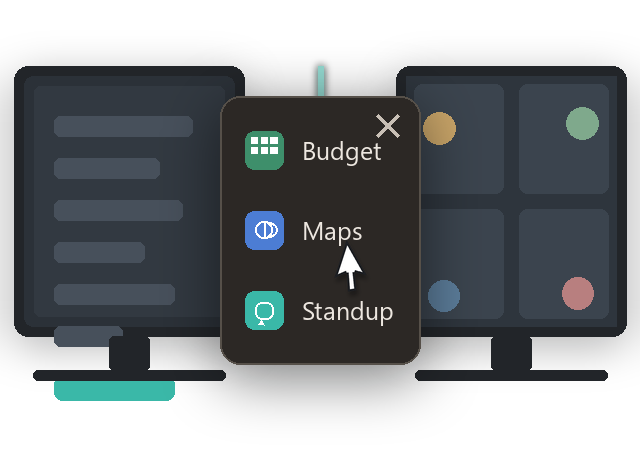
弹窗就在光标下方展开,列出旁边显示器上的所有窗口;如果你接了更多显示器,也可以列出那个方向上的全部屏幕。应用图标、标题和实时缩略图。
点一下,就到了。
点击想要的窗口——或按它的数字键——EdgePop 立刻把它带到最前。按 Esc 或移开鼠标,弹窗自动消失。点 X 还能顺手关掉不需要的应用。
工具虽小,能耐不少。
Choose your trigger
Stop at the edge, or cross the seam and come back; two activation modes, and you decide which edges are armed.
Live thumbnails
Real-time previews of every window on the other side. Minimized apps keep their card with the last snapshot.
Taskbar screen indicators
Small arrows (or numbers) under your taskbar icons point to the monitor each app lives on — hover an icon to see the screen name.
Peek before you jump
Hover an entry and everything else on that monitor fades away — taskbar-preview style — until you've found the right window.
Keyboard fast
Number keys 1–9 switch while the popup is open, and an exclude list keeps apps you never want listed out of it.
Featherweight
A ~2 MB install, about 10 MB of RAM, pure native Windows code. No runtimes, no ads, no telemetry — nothing leaves your PC.
常见问题
Yes — completely. EdgePop has no paid tier, no ads and no account. A Donate button exists if you want to support development, and it’s just as happy left unclicked.
Windows 11 for the full experience, and Windows 10 from the October 2018 Update (1809) onward. On Windows 10 the edge popup and all settings work; the taskbar screen indicators switch themselves off because they need the Windows 11 taskbar.
Almost nothing. The installer is about 2 MB, the app sits around 10 MB of RAM, and detection is a tiny mouse hook that costs nothing while you work.
No. EdgePop has no telemetry and makes no network requests — it works entirely offline. The kitkarl.com links in its Settings and About box are the only doors to the internet.
It runs from the system tray and only appears when you touch an edge. Settings are a plain INI file next to the app. Uninstall it like any Windows program — Settings → Apps.
Only if you want it to. An optional full-screen guard pauses the trigger while something plays full-screen; it’s off by default and one switch away in Settings.

EdgePOP by KitKarl · kitkarl 家族的一员