

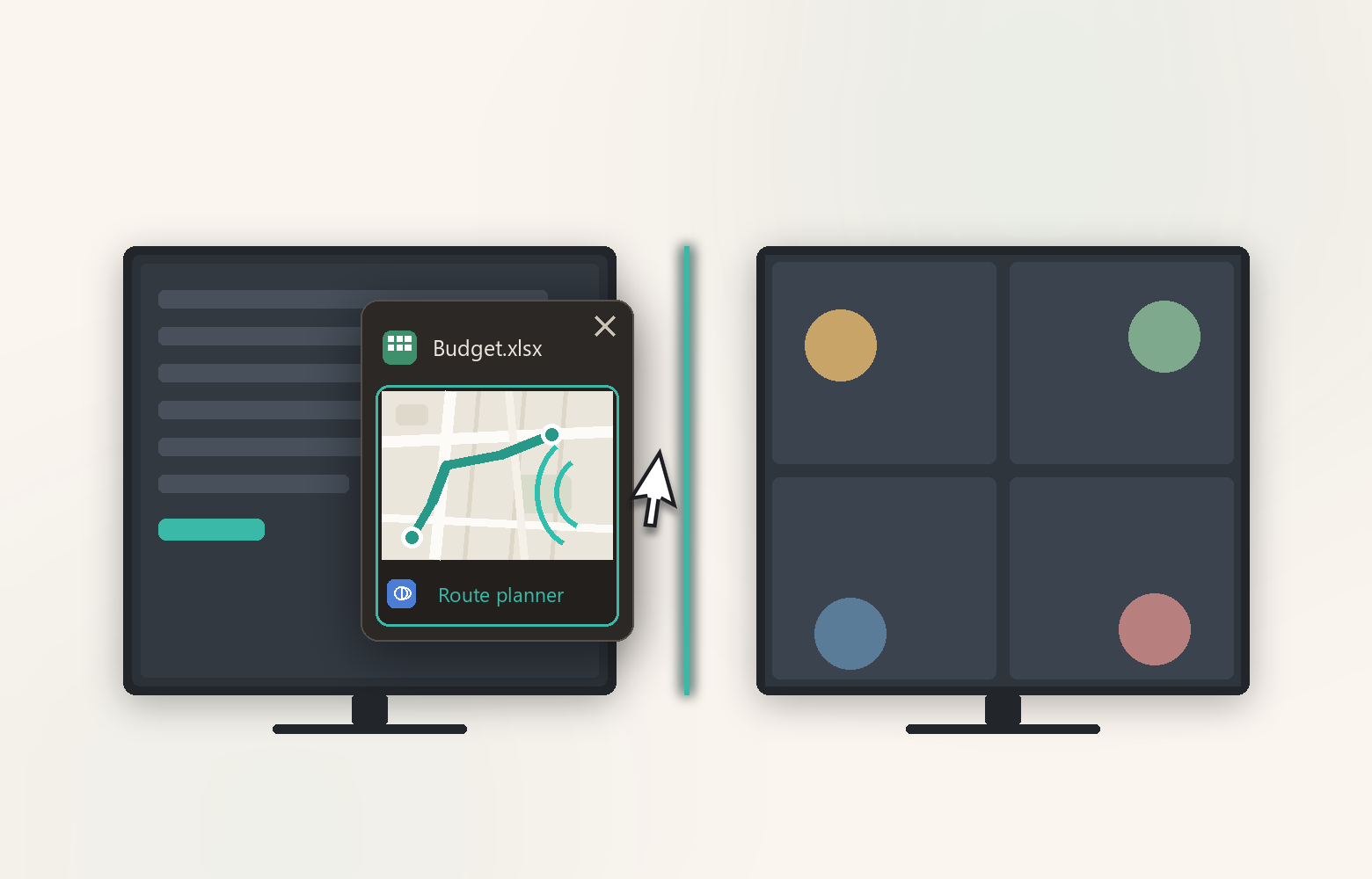
The edge becomes the switcher.
EdgePop is the multi-monitor switcher that lives at your screen edges. Park your cursor at the border between two monitors and every window on the other side appears — icons, titles, live thumbnails. Click one to jump straight there.
Free forever · No ads · No account · ~2 MB installer
One taskbar. Three screens. All that reaching.
You know the dance. The window you want is on the other monitor — so it’s Alt-Tab, Alt-Tab, Alt-Tab… or a long reach to a taskbar button that looks exactly like the other five. Windows never tells you where a window is; you keep jumping until you land on it.
EdgePop turns the border between your monitors into the switch. The edge you were already crossing becomes the fastest task jump on your desktop.
Three moves. That's the whole app.
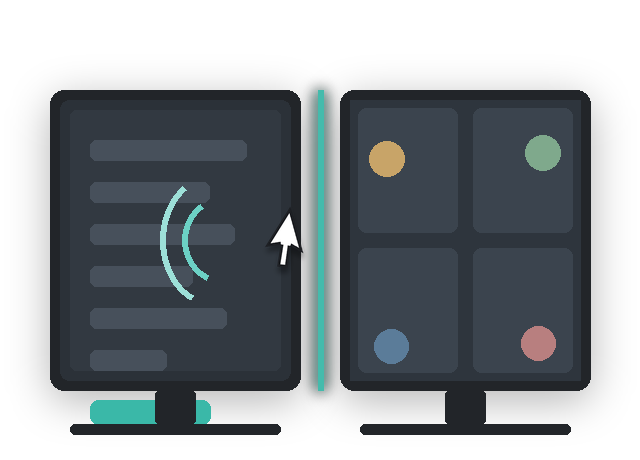
Flick to the edge and stop
Slide your cursor to the border between monitors and pause for a beat. A soft glow marks the spot — no hot corners to remember, nothing to click.
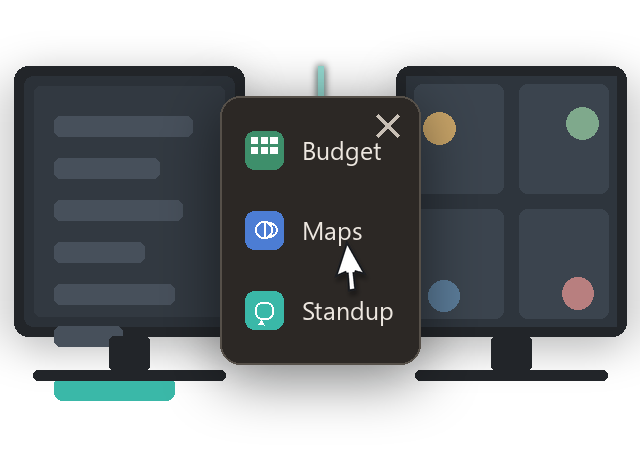
The other side appears
A popup opens right under your cursor listing every window on the neighboring monitor — app icons, titles and live thumbnail previews.
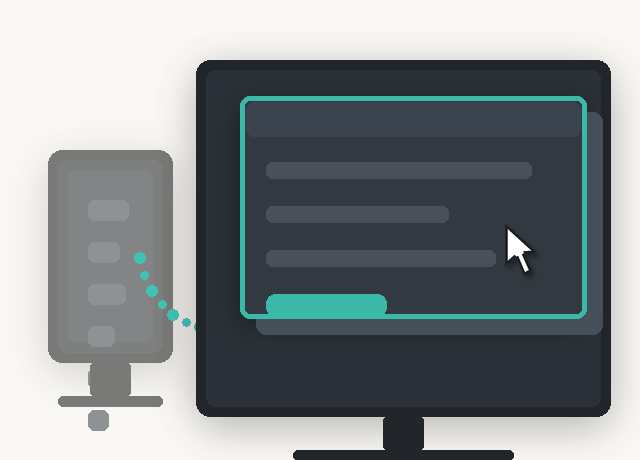
Click. You're there.
Click the window you want — or tap its number key — and EdgePop brings it to the front instantly. Esc or move away, and the popup is gone.
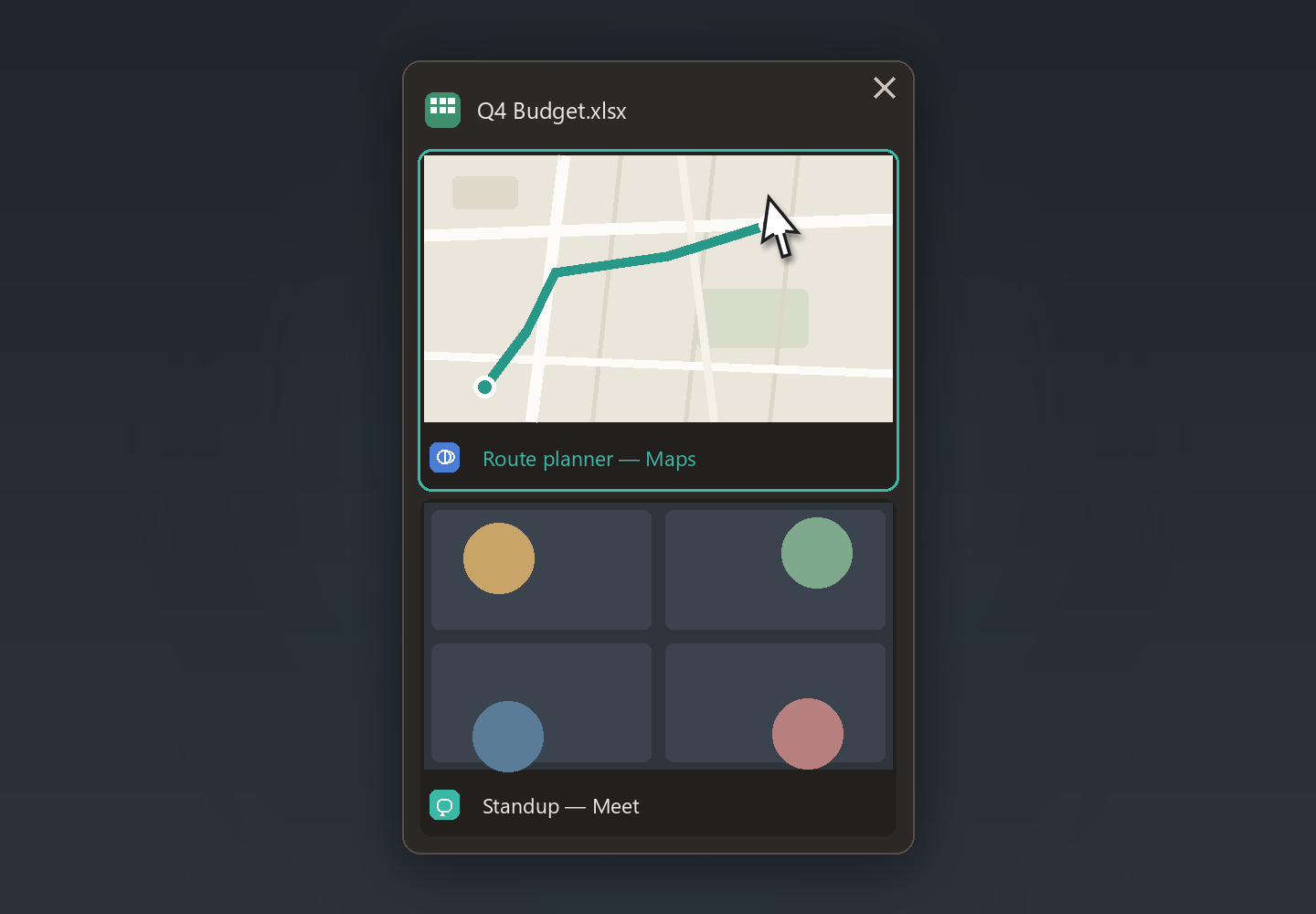
Every window on the other side, at a glance.
Cards show a live thumbnail of each window, letterboxed to its real shape. Minimized apps keep their card with their last snapshot — taskbar style. Hover an entry to peek at its monitor; the teal border marks your pick.
Small tool. Long list.
Choose your trigger
Stop at the edge, or cross the seam and come back — two activation modes, and you decide which edges are armed.
Live thumbnails
Real-time previews of every window on the other side. Minimized apps keep their card with the last snapshot.
Taskbar screen indicators
Small arrows (or numbers) under your taskbar icons point to the monitor each app lives on — hover an icon to see the screen name.
Peek before you jump
Hover an entry and everything else on that monitor fades away — taskbar-preview style — until you've found the right window.
Keyboard fast
Number keys 1–9 switch while the popup is open, and an exclude list keeps apps you never want listed out of it.
Featherweight
A ~2 MB install, about 10 MB of RAM, pure native Windows code. No runtimes, no ads, no telemetry — nothing leaves your PC.
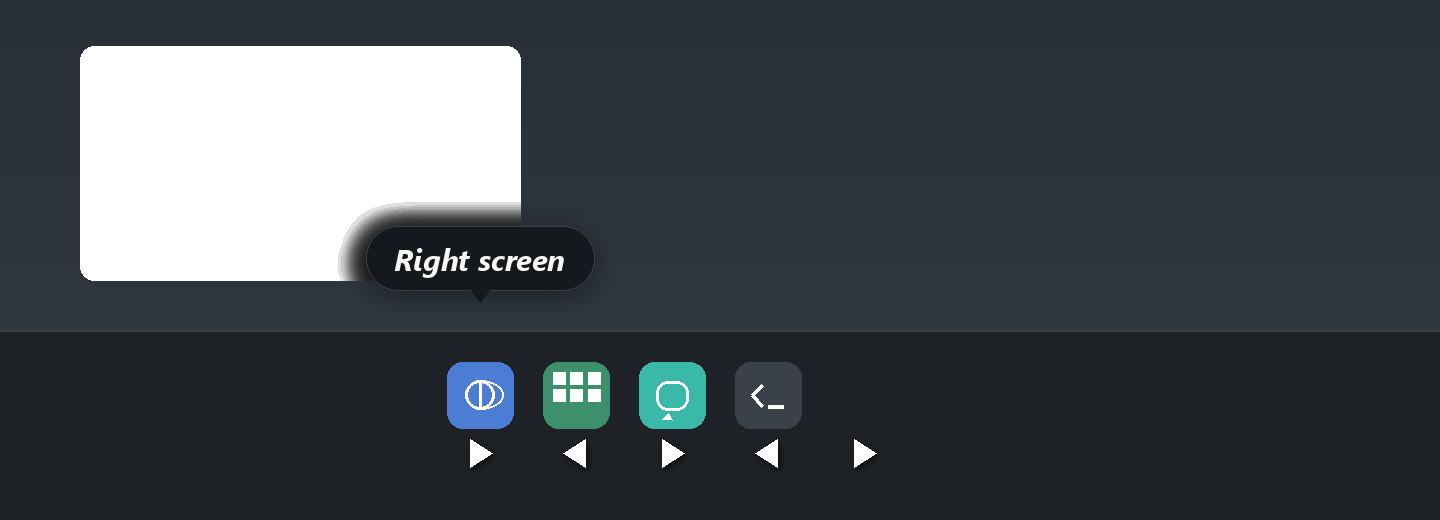
Your taskbar finally knows where things are.
Windows 11 keeps one taskbar for every monitor — and never hints which screen an app is on. EdgePop paints small arrows under your running taskbar icons pointing at the right monitor, and hovering an icon shows a chip naming the screen. Turn it on once and stop guessing.
Taskbar screen indicators need Windows 11. The edge popup works on Windows 11 and Windows 10 (version 1809+).
EdgePop is free. And it always will be.
No ads, no trial timers, no “Pro” tier hiding the good parts. If it saves you time, consider buying Karl a coffee — it fuels the next update.
Questions, answered.
Yes — completely. EdgePop has no paid tier, no ads and no account. A Donate button exists if you want to support development, and it’s just as happy left unclicked.
Windows 11 for the full experience, and Windows 10 from the October 2018 Update (1809) onward. On Windows 10 the edge popup and all settings work; the taskbar screen indicators switch themselves off because they need the Windows 11 taskbar.
Almost nothing. The installer is about 2 MB, the app sits around 10 MB of RAM, and detection is a tiny mouse hook that costs nothing while you work.
No. EdgePop has no telemetry and makes no network requests — it works entirely offline. The kitkarl.com links in its Settings and About box are the only doors to the internet.
It runs from the system tray and only appears when you touch an edge. Settings are a plain INI file next to the app. Uninstall it like any Windows program — Settings → Apps.
Only if you want it to. An optional full-screen guard pauses the trigger while something plays full-screen; it’s off by default and one switch away in Settings.
Your screens are closer than they look.
Download EdgePop and make the jump in your first minute — no setup, no tour.
Windows 11 · Windows 10 (1809+) · 2.1 MB
EdgePOP by KitKarl · part of the kitkarl family